Excel Attendance Sheet: A Free Ready-to-Use Template
Download a complete, customizable .xlsx file designed for classrooms, sports clubs, associations, and parishes. No sign-up required.
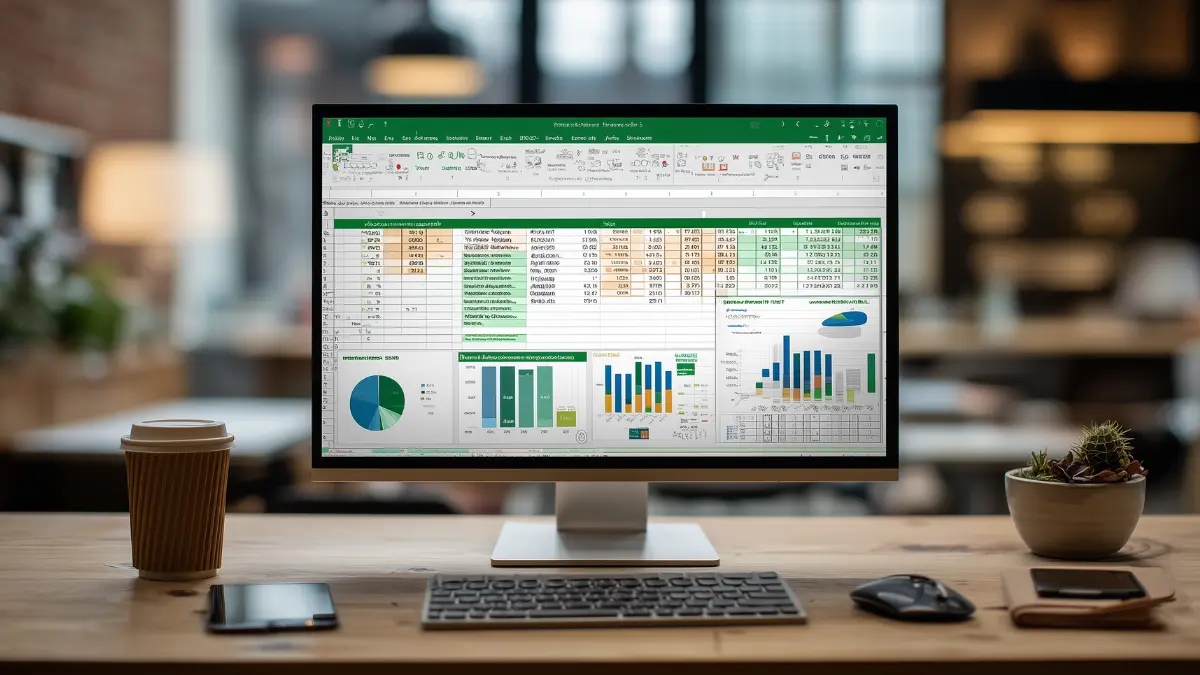
Who hasn't gotten fed up taking attendance on a crumpled piece of paper, half-illegible, that ends up lost at the bottom of a bag? Guilty as charged. If you're looking for a simple way to organize your tracking without investing in a dedicated tool, a well-designed Excel template is an excellent starting point.
We've prepared a complete, free template that requires no sign-up and can be downloaded immediately and adapted to your needs. It works with Excel, Google Sheets, and LibreOffice, covering the most common use cases.
In this guide, you'll discover the template, how to use it effectively, and when Excel reaches its limits -- so you can anticipate the right moment to switch to a more powerful tool if your needs evolve.
Why an Excel template is still useful in 2026
Despite the growing number of specialized apps, Excel holds a solid place in attendance management for several practical reasons. It's universal: everyone knows how to open it, even without training. It's free or already included in most professional licenses. And it offers total flexibility -- you can add a column in three seconds.
For small organizations (up to about twenty people and one or two groups), a well-maintained Excel file works perfectly well. The format is particularly suited to occasional tracking: a multi-day workshop, a monthly class, or a short training course.
- No installation or account creation needed
- Data stored locally (useful for certain GDPR requirements)
- Full customization of columns and formulas
- Compatible with Google Sheets for easy sharing
- Native export and printing in A4 format
Our advice: start with Excel if you manage fewer than 20 people or a single group. You'll naturally switch to a dedicated solution when the file becomes unmanageable.
Download the Free Excel Template
Our .xlsx template comes with everything you need to get started: a pre-formatted member list, an attendance grid covering 4 weeks, automatic attendance rate calculations, a monthly summary sheet, and a printable A4 version.
- 5 ready-to-use tabs
- Automatic calculation formulas (attendance rates, totals)
- Conditional formatting (alerts for repeated absences)
- Compatible with Excel 2016+, Google Sheets, LibreOffice
How to use the template step by step
Once the file is open, start with the 'Members' tab. Replace the example names with your own participants. If you have more than 30 people, simply duplicate the rows while keeping the formulas -- a standard copy-paste will do.
Then move to the 'Attendance' tab. Each column represents a session; just enter P (present), A (absent), or L (late). The statistics are calculated automatically in the 'Summary' tab without any additional work.
To adapt the template to your context, you can add custom columns (phone number, level, license number) without breaking the formulas -- they're protected by default, and you can unlock them in the sheet settings.
- Step 1 -- Open the file in Excel or Google Sheets
- Step 2 -- Fill in the Members tab with your participants
- Step 3 -- Enter P / A / L for each session
- Step 4 -- Check the summary automatically
- Step 5 -- Print or export as PDF if needed
Tip: to share the tracking with other supervisors, import the file into Google Sheets. Changes sync in real time -- without losing the Excel formulas.
Customize the template for your context
The template is deliberately neutral so it can be adapted to different audiences. Here are the most common adjustments based on your activity.
For a teacher or trainer: add a 'Justification' column next to absences, and a 'Participation grade' column if you assess engagement. For a sports coach: include a 'Level' column and a 'Injuries / restrictions' column for safety. For an association: add a 'Membership fees up to date' column and 'Parent email' if you manage minors.
For a parish or catechism leader: a 'Sacrament in preparation' column and a 'Family contact' column are often useful, in addition to raw session attendance.
- Teacher: add Justification + Participation
- Sports coach: add Level + Medical restrictions
- Association: add Membership fees + Parent contact
- Catechism / parish: add Sacrament + Family contact
- Professional training: add Cumulative hours + Signature
The limitations of tracking attendance with Excel
Excel is excellent for getting started, but quickly shows its weaknesses as your organization grows. Beyond about thirty members or multiple groups, the file becomes slow to handle, tabs multiply, and formulas break with the slightest careless copy-paste.
Sharing is another major issue. If several people supervise the same group, you quickly end up with three versions of the file on three different computers -- and nobody knows which one is up to date. Google Sheets partially solves the problem but introduces its own limitations (loss of advanced Excel functions, offline sync issues).
Finally, Excel isn't designed for mobile use. Taking attendance on a phone in an Excel file is technically possible but painful in practice -- and that's precisely the situation where you need speed.
- Slow and heavy beyond ~30 people
- High risk of breaking formulas when editing
- No reliable real-time collaboration
- Poor mobile experience
- No advanced statistics or automatic alerts
- No fine-grained access control
Based on our data from 5 years of observation with Attendy, users typically switch from Excel to a dedicated app between 25 and 40 managed members.
Excel vs Dedicated App: The Comparison
To help you compare Excel with a specialized solution like PresenGo, here's an honest comparison based on the criteria that matter most in daily use.
| Criterion | Excel | Dedicated App |
|---|---|---|
| Setup time | 5 min | 5 min |
| Taking attendance on mobile | Painful | Optimized |
| Real-time collaboration | No (except Google Sheets) | Yes |
| Automatic statistics | Manual | Automatic |
| Visual drop-off detection | No | Yes (via statistics) |
| Beyond 50 members | Slow | Smooth |
| Cost | Free (with Office license) | Freemium / 5.99€ |
| Advanced customization | Total | Guided |
No solution is universally better: it all depends on the size and frequency of use.
When to switch to a dedicated app
Several signals should alert you that it's time to leave Excel behind. The first is the feeling of wasting time every time you open the file -- you spend more time managing it than using it. The second is the need to share: as soon as two or more people need to record attendance, Excel becomes a headache.
The third signal is statistical: you want to see trends, spot drop-offs, compare groups -- and you realize it would take hours of formulas or a pivot table you don't want to build.
Good news: most dedicated apps (PresenGo included) let you import your existing Excel files directly. You don't lose your data or your history.
- You manage more than 30 members
- You have more than 2 different groups
- Multiple people need to take attendance
- You want automatic statistics
- You often take attendance from your phone
Frequently Asked Questions
Does the Excel template work with Google Sheets?
Yes, you can import it directly into Google Sheets. Most formulas are preserved. Some conditional formatting features may need minor adjustments, but the template remains fully functional.
How many people can the template handle?
The template is designed for 30 people by default, but you can extend it by duplicating rows. Beyond 50 people, we recommend switching to a dedicated app to maintain good performance.
Is the template really free?
Yes, completely free, with no sign-up or email required. You can download it, modify it, share it, and use it freely, including in a commercial context.
Can I customize it without breaking the formulas?
Yes, added columns and rows don't affect the existing formulas. You can add columns (phone, level, etc.) or additional tabs safely.
How do I migrate from Excel to PresenGo when the time comes?
PresenGo lets you import your Excel or CSV file directly (available from the Starter plan onward). Migration typically takes less than five minutes, and attendance history is preserved.
Wrapping Up
A well-designed Excel template is more than enough to manage attendance for small groups, and our free template gives you everything you need to get started right away. Download it, customize it for your context, and focus on what matters most: leading your group.
The day the file becomes too heavy to manage, you'll know it's time to switch -- and you'll be able to do so without losing anything you've built.

Ready to take attendance to the next level?
PresenGo digitizes attendance management in seconds, with real-time collaboration. Free plan with unlimited members and groups. Advanced statistics and exports from the Starter plan onward.
Try PresenGo for Free